Booking App Guide: Workstation and Class Reservations
This guide is for VeraLab administrators and Booking Administrators. It describes the optional Booking Application add-in: how students and faculty book individual workstations or an entire computer room for a specific period, the rules every booking must pass, how class bookings and booking reports work, and how to deploy the module. It is current for VeraLab 26.1.
Booking Application Overview
The Booking Application add-in for VeraLab Suite gives students and faculty a web-based tool to book individual workstations or an entire computer room for a specific period of time. It assumes that VeraLab Suite runs in Self-Service mode and is integrated with the campus LDAP or MSAD directory.
Note: starting with version 9.3, the Booking App is embedded in the VeraLab deployment. You do not need a special edition of VeraLab Suite to support the Booking Application add-in, but you must obtain a Booking App license to enable the module. Please contact sales@veralab.com for details.
Important: as of VeraLab 26.1, client sign-in behavior, including Self-Service mode, is configured centrally on the server under Setup → Client Modes, and a single unified client installer replaces the separate Standard and LDAP installers. Confirm that the rooms used for booking are assigned a Self-Service-capable client mode.
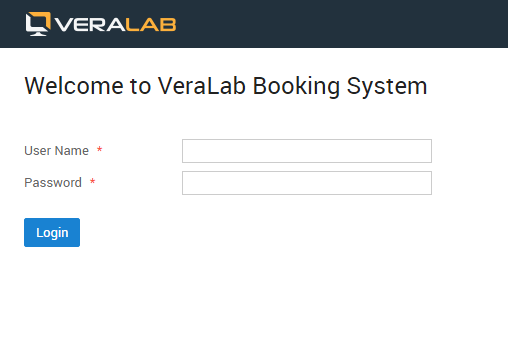
When the Booking App is enabled, students log on to lab workstations with their individual credentials (username and password) stored in the LDAP or MSAD directory. If authentication succeeds, users are granted access to computers, provided no other limitations apply (see checks and limitations).
Different computer rooms have different open times (not all rooms are available 24/7), and students can only make reservations within a lab's open hours.
Note: lab schedules and lab open hours must be defined before reservations can be made.
Booking Process
To make a reservation, a user logs in to the VeraLab Booking Application in a browser. The Booking Application can be deployed on a separate server from VeraLab Suite. If the VeraLab server or Booking Application is reachable from off-campus networks, students and faculty can make reservations from any computer connected to the Internet.
Warning: a student on the Ban List cannot log in to the Booking Application to make a reservation until the Booking Administrator removes the ban.
By default, the Booking Application URL is http://bookingapp_host:port/booking, where bookingapp_host can be the same as the VeraLab host if it was installed as a single node. The default port is 8080.
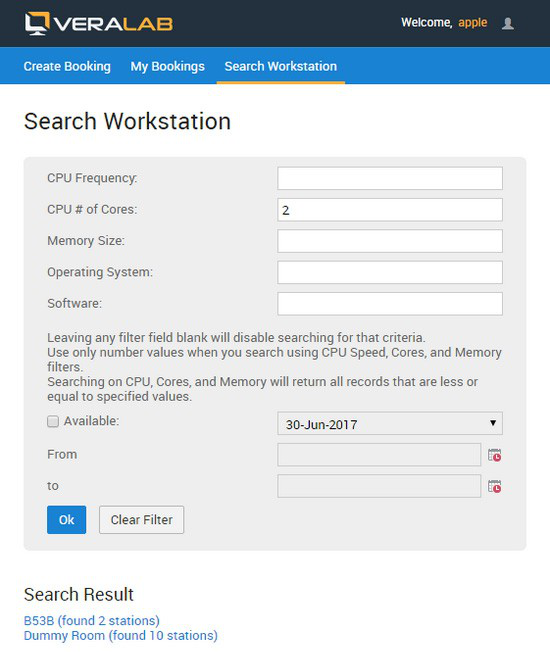
After logging in, the user sees several tabs and can create a new reservation, view, edit or cancel existing reservations, or search for workstations that meet certain criteria, for example computers with at least 4GB RAM and 2 CPU cores. A search returns the list of rooms where matching workstations are found.
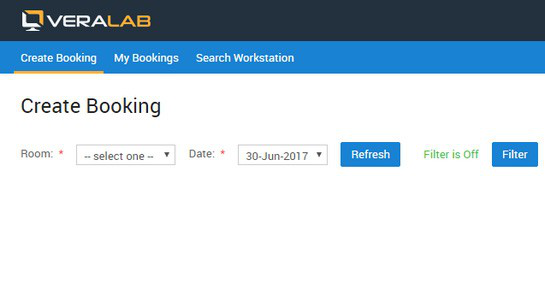
Once a room and date are selected, the user sees a grid of the room's workstations. Each cell shows a workstation name and a Book link; clicking it opens a window to specify the reservation start and end times for that workstation on that date. Students can see workstation availability and book accordingly. They cannot book workstations marked as unavailable or booked for a class. Users can see which time slots are already reserved and cannot make reservations that overlap existing ones.
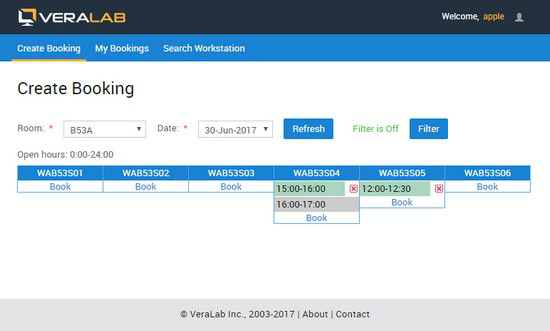
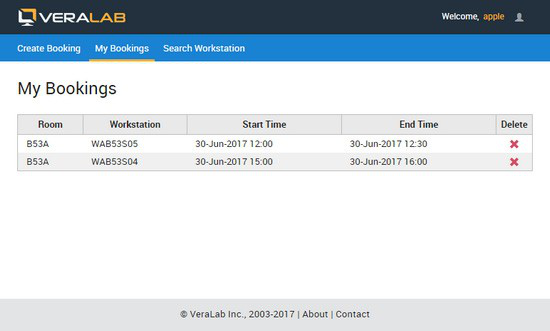
Students can make reservations in advance, for example a week ahead, but no later than 15 minutes before the requested time.
Booking Process Checks and Limitations
Regular student bookings
These checks apply to a regular student's bookings and to bookings made by the Administrator on behalf of a student:
- Start and end times must be a multiple of 15 minutes.
- The student is not on the Ban list.
- The booking does not exceed the booking limit (the default is 60 minutes, defined in Application Settings).
- The booking start time is in the future.
Note: starting with version 9.2, the Booking module supports immediate bookings. To review or update this setting in the VeraLab application, go to Tools → Settings → Booking Settings and check Booking Buffer Time. If the value is set to
-1, immediate reservations are permitted. - The station is available for bookings (reservable).
- If a station's status has been “unavailable” for more than 24 hours, a booking request cannot be completed. If a station has been unavailable for more than 2 hours but less than 24 hours, the next booking can be made for any period beyond 24 hours from the start of the unavailability. If a station has been unavailable for less than 2 hours, the next booking can be made for any time beyond 2 hours from the start of the unavailability.
- The booking time falls within the room/lab schedule.
- The student has not exceeded the booking quota for the day.
- No other bookings exist for the same time period (no double-booking).
- No other class/block bookings exist for the same time period.
- The next booking availability is at least 15 minutes ahead in the future.
Administrator bookings
- Start and end times must be a multiple of 15 minutes.
- The booking start time is in the future.
- The station is available for bookings (reservable).
- The same station unavailability rules apply as for student bookings (24-hour and 2-hour limits, above).
- The booking time fits the room/lab schedule.
- No other bookings exist for the same time period (no double-booking).
- No other class/block bookings exist for the same time period.
- The student username/ID is valid in the directory.
Block (class) bookings made by the Booking Administrator
- Start and end times must be a multiple of 15 minutes.
- The booking start time is in the future.
- If the booking is recurrent, at least one day has been specified.
- The room is open at the requested time.
- No other booking exists for the same time. All overlapping individual bookings are canceled and email notifications are sent out.
- Block bookings can be made within the next 6 months from the current date.
Changes to schedules
When a schedule changes, all bookings for the affected room/lab are scanned and canceled if required. Deleting a schedule follows the same logic.
Time and date periods
In most cases, when you specify a date/time range, VeraLab uses the from/to inclusive rule. For example, a schedule defined from January 1 to January 3, 2010 is valid on January 1, 2 and 3, 2010. The only exception is booking time: a booking made from 0:00 to 0:15 expires exactly at 15 minutes, so the actual booking time is from 0:00:00 until 0:14:59.
Note: all time periods and schedules are valid within a 24-hour period of the same date, starting at 0:00. For example, a room schedule from 19:00 to 2:00 has to be defined as two time ranges: 0:00-2:00 and 19:00-0:00. The same rule applies to bookings: a booking that spans 0:00 has to be requested as two time periods.
Client behavior and checks
To enforce a reservation on the client side, the following checks are performed:
- When a new booking time is reached, the client displays a custom message for 5 seconds and then logs the session out.
- When a new user logs in, the client checks with the server whether that user has a booking. If the booking belongs to the same user, the session keeps running; if not, the client performs the action from step 1.
Background processes and servlets
The background monitoring process wakes up every minute and:
- Closes long-running sessions on all stations that exceed the “max registration length” setting. To avoid automatic session time-outs, increase the “max registration length” value to a large number that exceeds the room's open hours.
- Sends warning messages to stations where sessions are expiring.
- Closes sessions on stations occupied by anyone other than the user with the current booking.
- Sends warning messages about logout.
- Updates database tables and deletes completed/expired bookings (both individual and class).
- Updates database tables and deletes “no show” bookings.
The servlet handles requests as follows:
- If a class booking is in progress, any user can start a new session. The class instructor is expected to make sure only students enrolled in the class use the room.
- If an Admin booking is in progress, any user can start a new session. The Administrator is expected to enforce access in this case.
- If no booking is in progress, any user can start a new session.
- If an individual, non-admin booking is in progress, only the user with the matching username can continue with a new session. Any user can log in, but is immediately logged out if their username does not match the username on the booking.
Class Bookings
Class bookings are made in the main VeraLab application at http://veralab_server:8080/veralab. The VeraLab user must have the Booking Administrator role to log in to VeraLab and perform these actions.
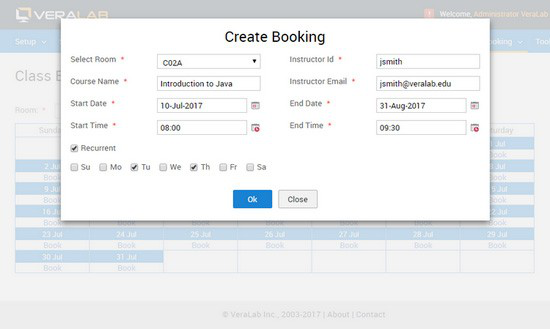
Starting with version 8.8, a message is displayed if a room is closed on the selected date. Class bookings can be imported in batch mode from Tools → Maintain Data → Import Class Bookings.
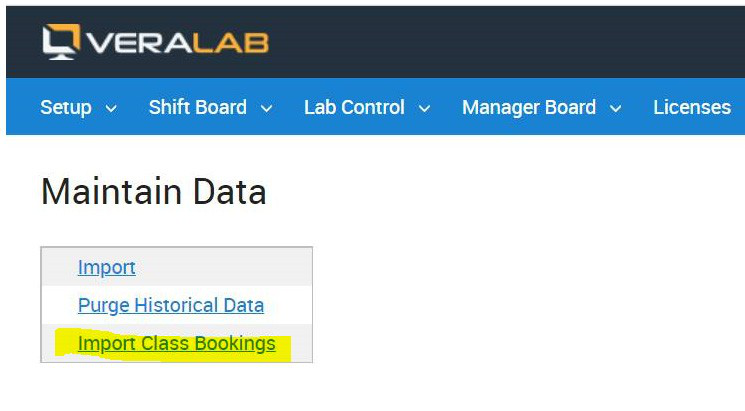
Important: in VeraLab 26.1, the Import Class Bookings batch file and the booking report exports use the .xlsx (Excel) format. Save legacy .xls import files in .xlsx format before importing.
Deployment
The Booking App module is integrated into the VeraLab Standard and Enterprise Edition installation packages as an optional component. Customers with a Booking App license do not need a separate binaries package unless they have other, unrelated customizations. Existing customers without a license can request a trial license by contacting sales@veralab.com.
- Install VeraLab and select the Booking Web Application option.
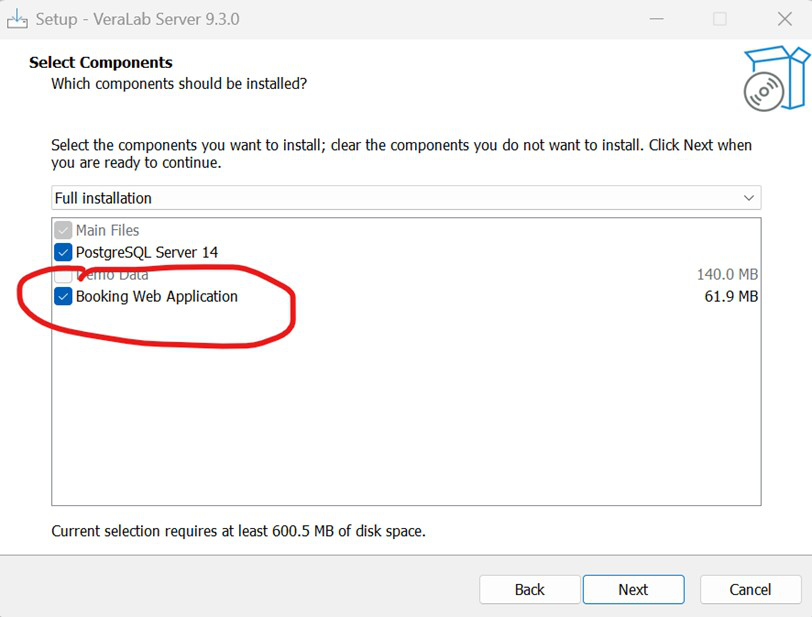
Selecting the Booking Web Application component during VeraLab Server installation. - Apply the special license key to unlock the Booking App functionality.
- Log in to the VeraLab web application and go to Tools → Settings → Booking Settings.
- Update the LDAP Server attributes to point to your onsite LDAP or MSAD server.
- Log in to the VeraLab Booking App and follow the steps above to make a computer reservation.
Booking Reports
The following reports are available in VeraLab Suite when it is integrated with the Booking Application module. Booking reports are available only to users with the Booking Administrator role.
| Report | Description |
|---|---|
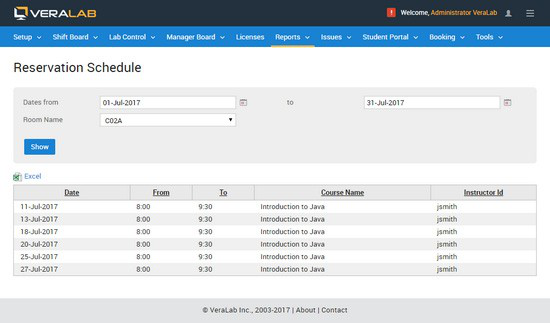
| Show Reservation Schedules | Filters: from/to dates, room. Displays a schedule table for the selected room and shows only block/class bookings. |
| Number of Bookings | Similar to the built-in login report. Displays the number of bookings per room, counting user bookings (all except canceled or banned), by day of week or as a distribution by hours. |
| Bookings by Workstation | Counts and displays the number of bookings per workstation, grouped by month, week or day. Counts user bookings (all except canceled or banned). |
| Block Booking Report | Filters: from/to dates, room. The report period is limited to 31 days because the calculations are resource-intensive. Sums all non-canceled block bookings and total open hours per room, and shows block bookings as a percentage of total open hours. |
| Search Bookings | Finds booking records by search criteria and predefined filters, such as Booked, Completed and Canceled. |
| Bookings Utilization | Shows ratios such as the number of bookings over a period of time, booked logins vs. total, and the number and percentage of cancellations. |
| Workstation Unavailability History | Located under Technician (role) → Reports. Exports data from the availability log. |
Related
For a short overview of what the module offers, see the VeraLab Booking App feature page. Related features: lab sign-in and waitlists and reports and analytics. Booking App sign-in relies on your directory, so the LDAP Configuration Guide may also help. Browse all documentation.