VDI and Multi-session Environments: VeraLab Setup Guide
This guide is for VeraLab administrators who run multi-session environments, such as Citrix servers or VDI, where many users work in concurrent sessions on the same server. It shows how to register your multi-session servers and thin clients in VeraLab so that every user session is tracked and appears in VeraLab reports, software usage statistics and Live Maps.
Prerequisites
- VeraLab Server 9.1 or higher is up and running with the multi-session license loaded. To verify that you have the correct license, go to Tools → About and check the Additional Modules option.
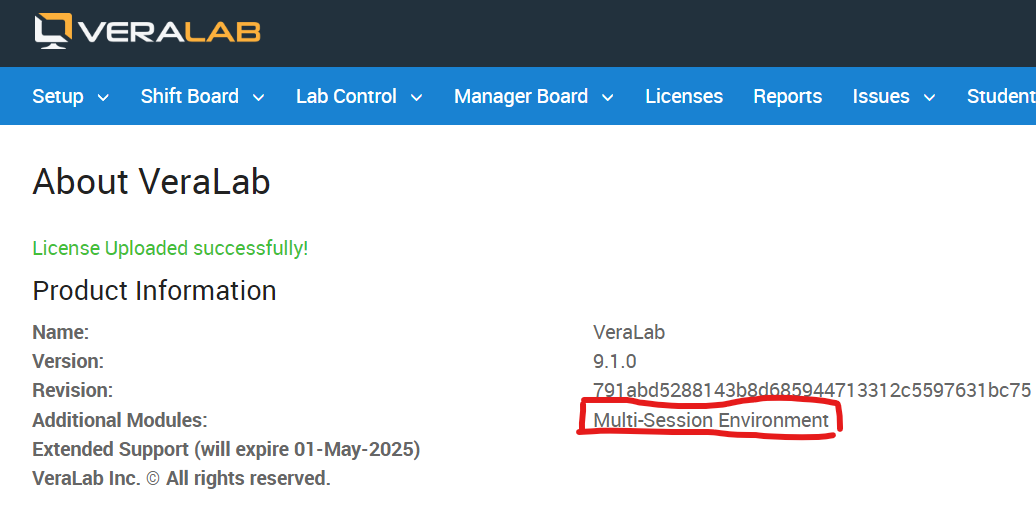
Tools → About: the Multi-Session Environment module is listed under Additional Modules. - You have a multi-session environment, such as Citrix servers or VDI, that allows multiple concurrent user sessions. In this guide, multi-session servers running multiple concurrent sessions are called RDS (Remote Desktop Services) servers. For illustration, the examples use one RDS server named RDS.
- You have a Thin Clients room and a room for your RDS servers, called Servers in the example below, already set up in the VeraLab UI.
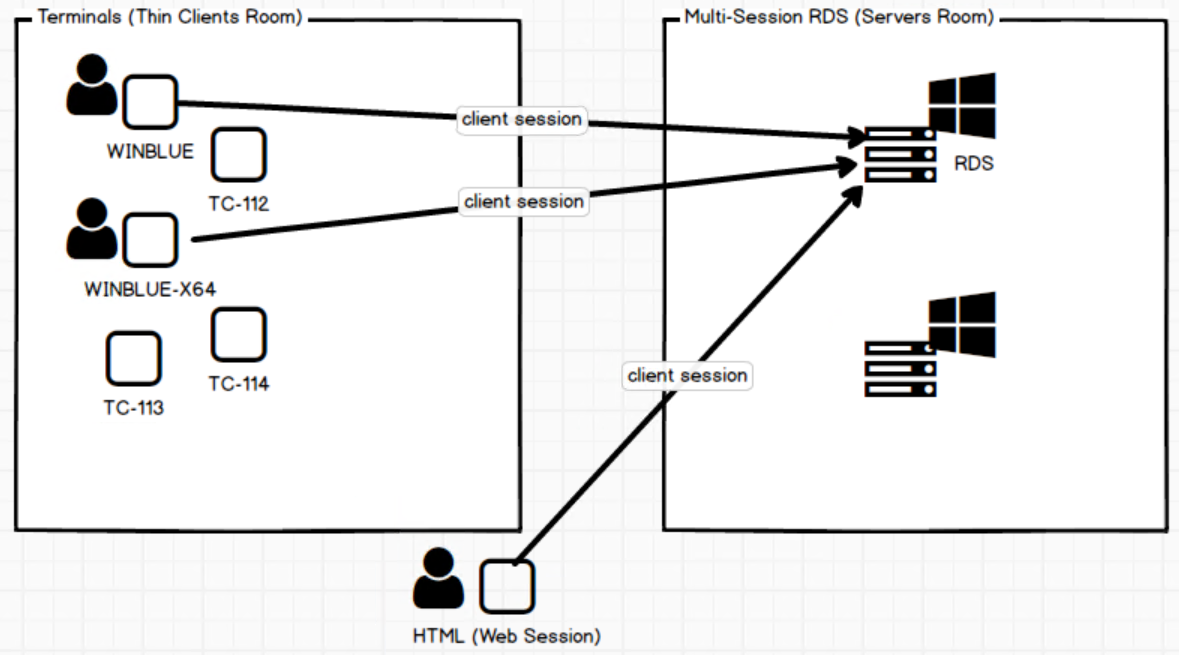
Example environment: terminals in the Thin Clients room and a web (HTML) session connect to the multi-session RDS server in the Servers room. - VeraLab client software (VeraLab client 9.1 or higher) is installed on the RDS servers.
Setup Steps
- Verify the setting under Tools → Settings → Multi-session Settings → Enable auto-adding of terminal clients to Unregistered Stations list (true/false). If you would like new connections to be added to the Unregistered Stations list, set the value to true.
- Log in to VeraLab and go to Setup → Stations → Unregistered Stations. You may skip this step if you already registered your RDS servers during client installation.
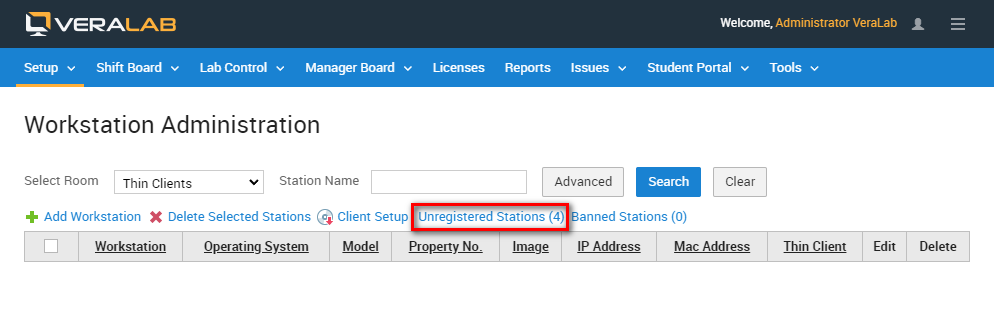
Workstation Administration: open the Unregistered Stations list. Note: when you install the VeraLab client software on RDS servers in interactive mode, they attempt to connect to the VeraLab server and you can select a room to assign them to (in this example, the Servers room).
- Register the RDS server with the Servers room.
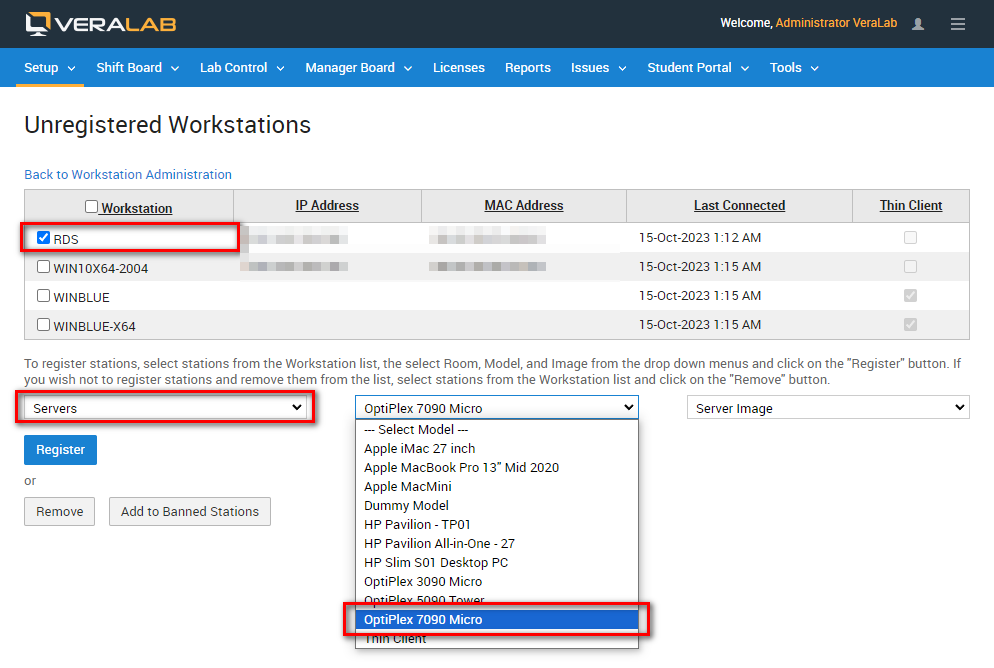
Select the RDS server, choose the Servers room, a model and an image, then click Register. (IP and MAC addresses are blurred.) - Go to Tools → Diagnostics, select the Servers room and verify that the server is displayed in the list. It may take a minute for the icon status to turn green (connected). Clicking the RDS icon will not show any sessions until thin clients start connecting.
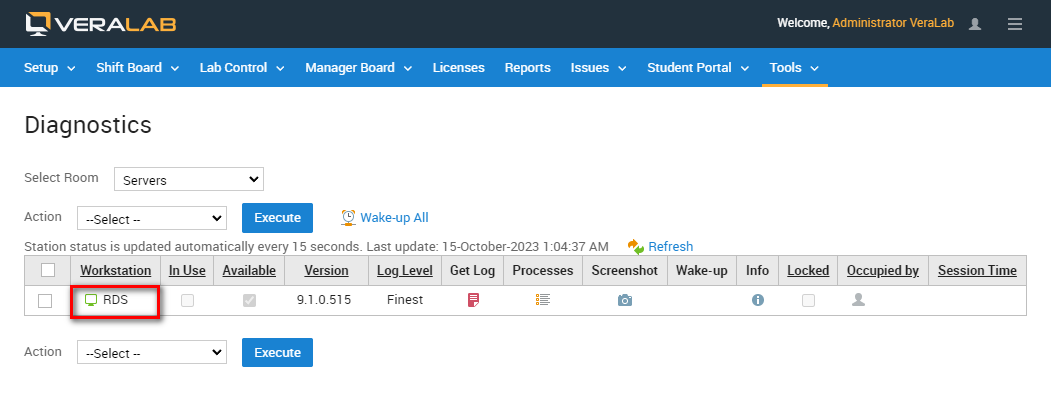
Tools → Diagnostics with the Servers room selected: the RDS server is listed. 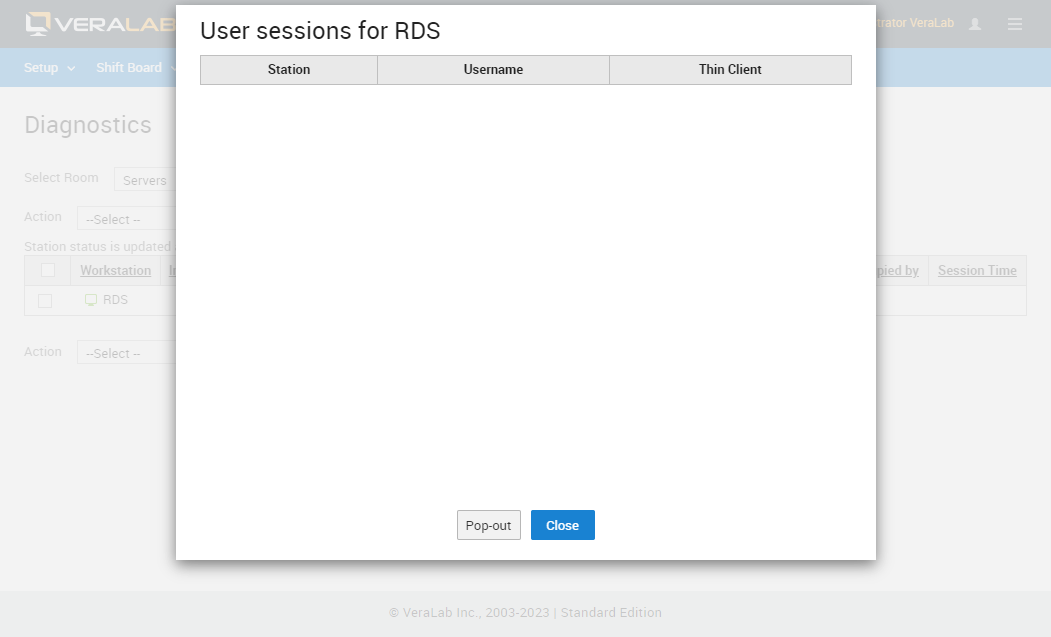
The User sessions for RDS window is empty until clients connect. - When a client connects to the RDS server, you can see it in the list by clicking the RDS icon.
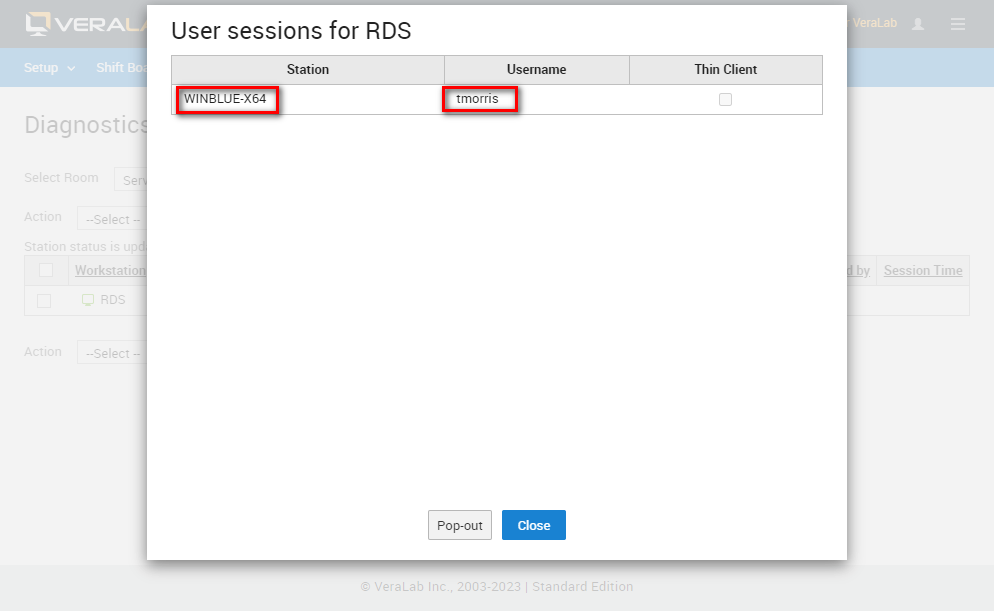
A terminal session from station WINBLUE-X64 appears in the RDS user session list. - At this point the client session is stored in the database and you can view statistics in VeraLab reports. For example, go to Reports → Search Self-Service Logins and click Search. In existing environments with a lot of historical data, select the Servers room in the filters to limit the output.
Note: in the Workstation column the session is displayed as RDS with the client station name in round brackets until that thin client is registered in a room as a thin client.
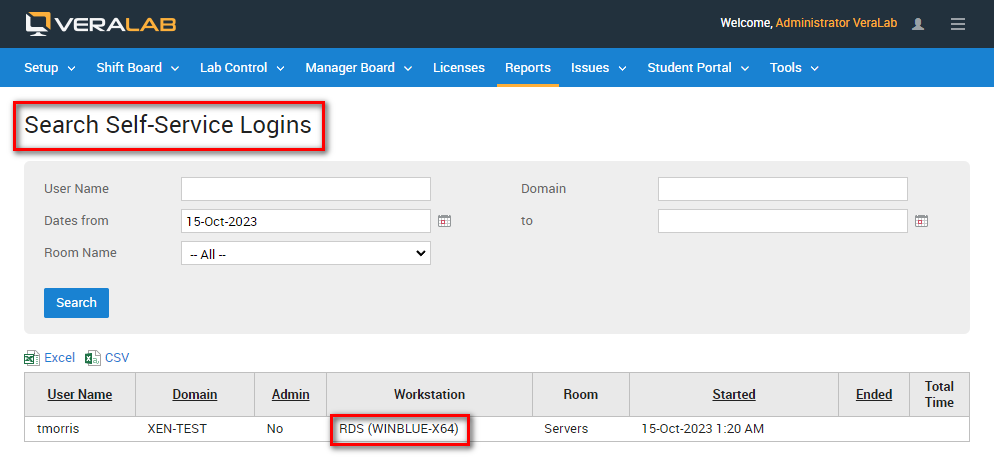
Search Self-Service Logins: the session is shown as RDS (WINBLUE-X64). - Multi-user sessions can originate either from terminal clients or from web-based sessions. Web-based sessions do not show in the Unregistered Stations list, but you can see them in the RDS user session list. Their station name contains a template string.
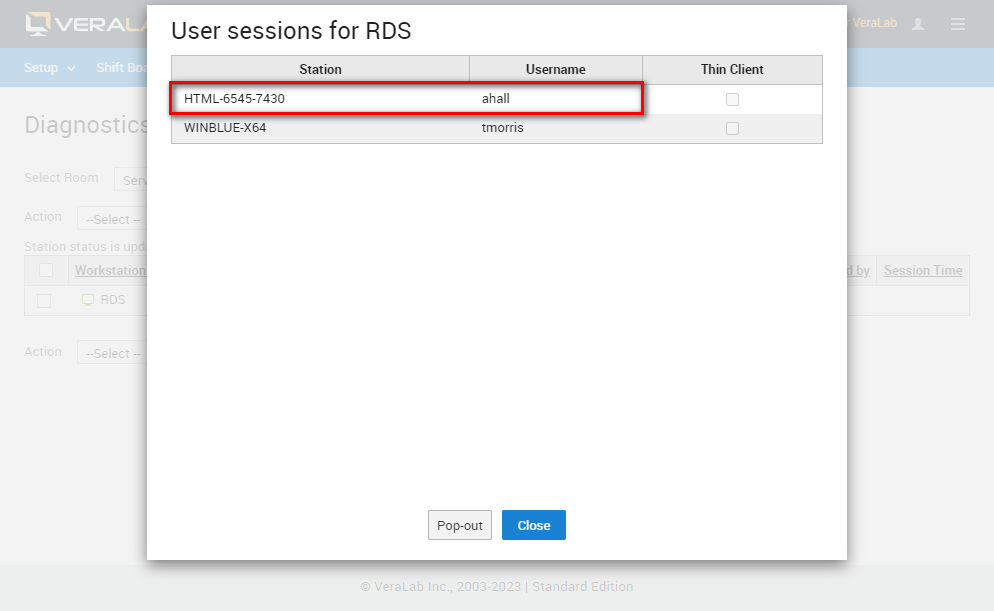
A web-based session (HTML-6545-7430) in the RDS user session list. Note: VeraLab stores usage statistics (logins, application usage) for these clients. However, for security reasons VeraLab does not allow any other actions on them, such as taking screenshots, terminating processes or sending messages.
Registering Thin Clients and Viewing Usage
- To register thin clients, go to Setup → Stations → Unregistered Stations and register the new client under the Thin Clients room.
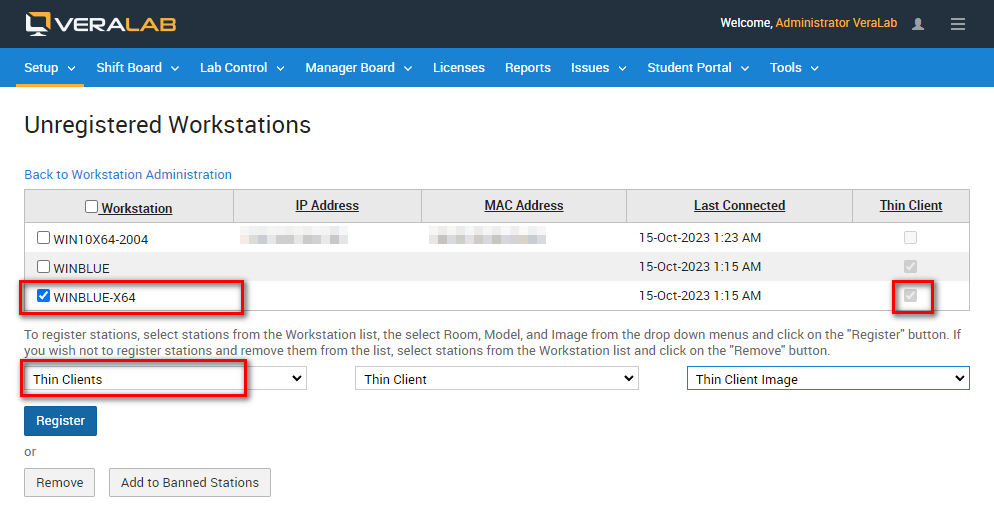
Registering thin client WINBLUE-X64 in the Thin Clients room. (IP and MAC addresses are blurred.) - Once registered, client names show individually in the Search Self-Service Logins report under the Thin Clients room.
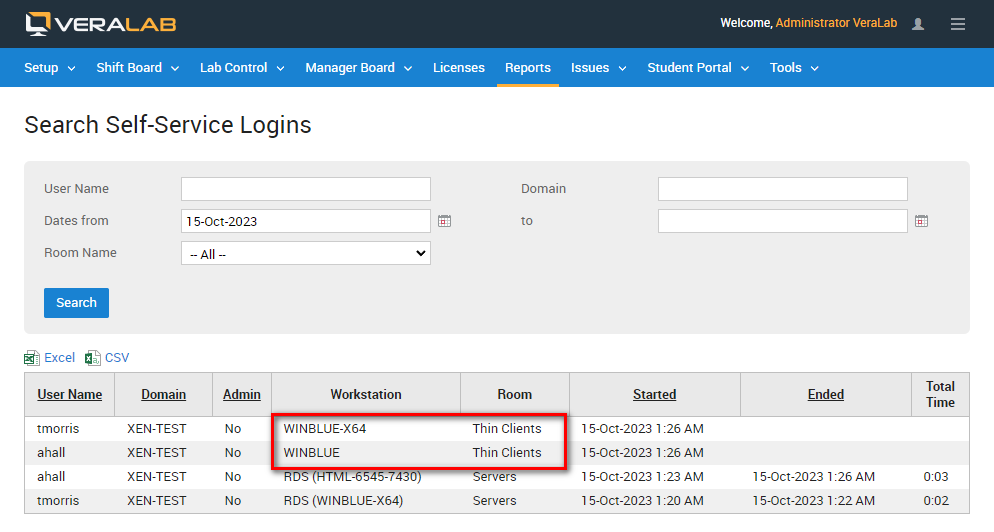
Registered thin clients appear by name under the Thin Clients room. - If you use the license management functionality (under the Licenses menu) to track software usage, you can see software usage statistics in various reports, such as Software Usage History. The same applies to Live Maps, where you can edit room maps and populate them with thin client stations.
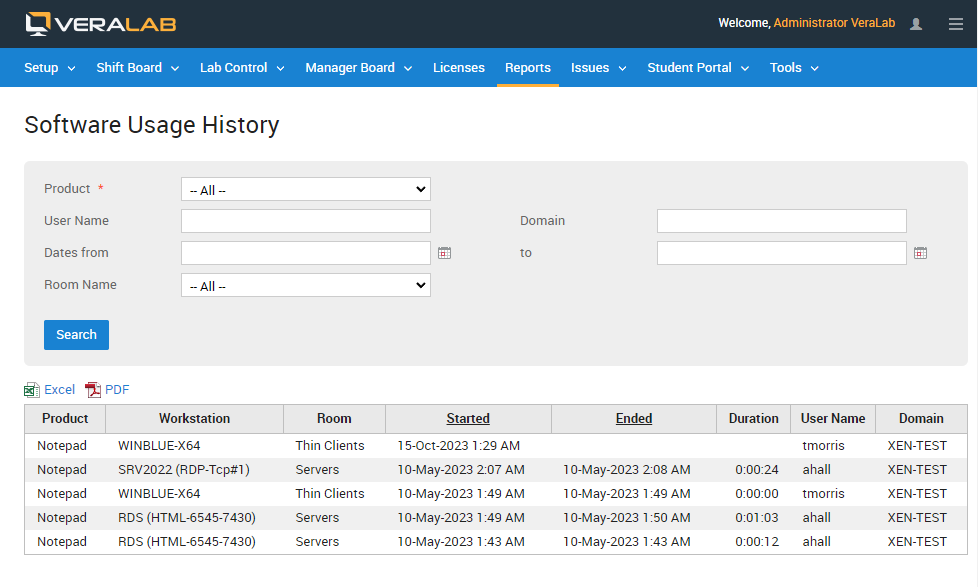
Software Usage History includes usage from thin clients and RDS sessions. 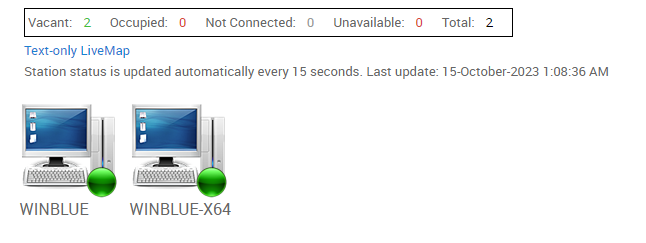
A Live Map populated with thin client stations.
Reporting a Bug or an Issue
Found a bug? Please report it to support@veralab.com. If you notice any discrepancies in this guide while testing in your environment, please let us know. Thank you for using VeraLab and for taking the time to send us your feedback!
Related
See the FAQ on multi-session VDI support, the Remote Access Setup Guide and VeraLab reports and analytics. For an overview of the suite, visit VeraLab, or browse all documentation.