Computer Lab Issue Tracking and Maintenance
A sticky mouse, a failed reimage or a dead monitor may seem minor, but every broken workstation is a seat students cannot use. When problems are reported through emails, spreadsheets, sticky notes and flip-over signs, issues get lost between shifts, technicians do not hear about them in time, and users keep sitting down at machines that do not work.
VeraLab includes an issue tracking and maintenance system that is fully integrated with sign-in. Lab Assistants log issues against specific workstations, Technicians are notified by email and work through them in an orderly fashion, and an out-of-order workstation can be removed from service so nobody is assigned to it until it is fixed. Because every issue is tied to a workstation and its repair cost, you also build a maintenance history you can analyze later.
Log Issues Against Workstations
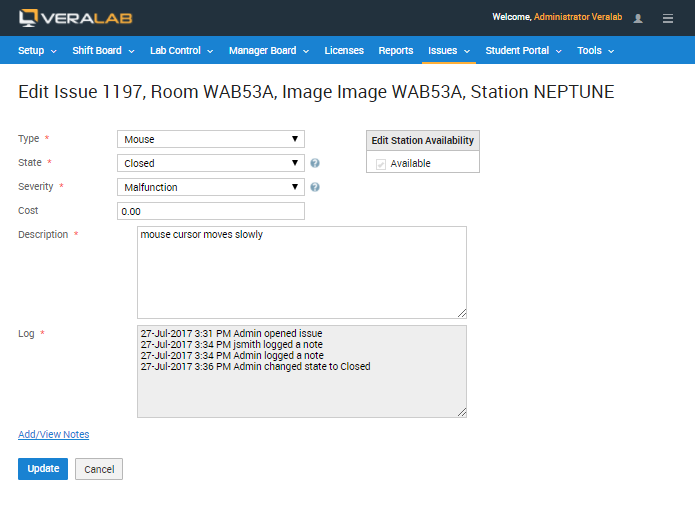
The system keeps the list of maintenance issues associated with workstations. Each issue records the room, image and station, a type (such as Mouse, Boot Problem, CD/DVD-ROM or CPU), a state, a severity (Out-of-order, Malfunction or Function), the repair cost, a description and a time-stamped log of every action. Issues can be ranked by severity, type, priority and status, and custom values for these criteria can be added during installation.
Technician Notifications and Open Issues
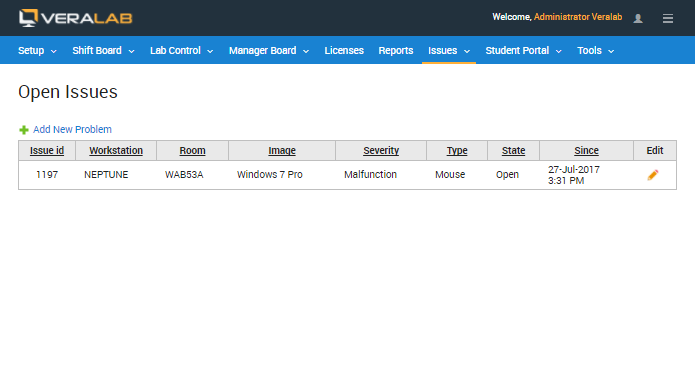
As soon as a new open issue is submitted, Technicians are notified by email. Each Technician can also review the list of currently open issues at the start of a shift, with the workstation, room, image, severity, type, state and the time the issue was opened, and can add a new problem from the same page.
Collaborating with Notes
Lab personnel collaborate on issues by adding notes. When a new note is submitted, the issue creator and all technicians are notified by email, and each note is recorded in the issue log, so the next shift can see what has already been tried. Technicians can request more information from the person who reported the problem, and issues can be closed or marked Will Not Fix.
Searching Issue History
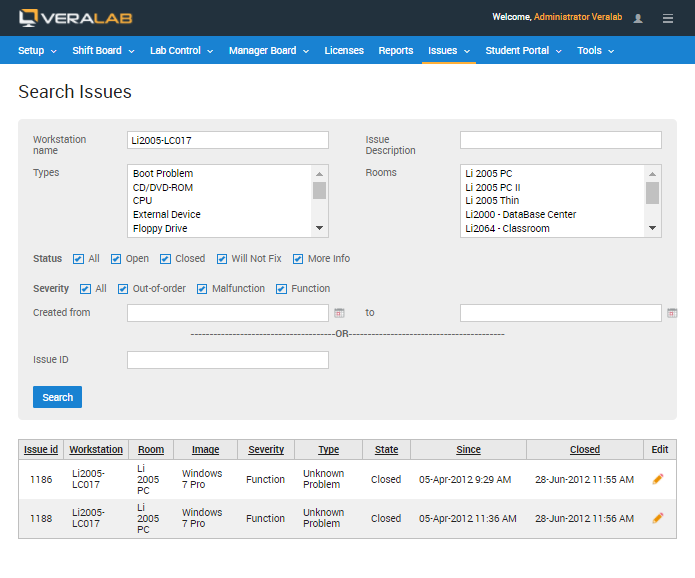
Lab personnel can search the issue database by workstation name, issue description, type, room, status (Open, Closed, Will Not Fix, More Info), severity, creation date range or issue ID. This makes it easy to see whether a workstation has failed before, and what was done about it.
Taking Workstations Out of Service
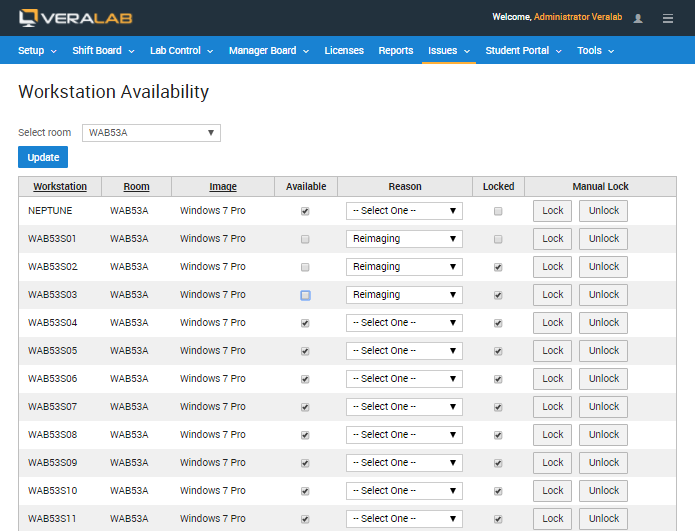
Technicians can mark workstations unavailable for user sign-in, directly from an issue or from the Workstation Availability task, where each station can be given a reason such as Reimaging. An unavailable workstation cannot be signed in to in any sign-in mode, counter or self-service, and the Dashboard shows it as unavailable, so Lab Assistants never send a user to it. Managers and support staff can monitor workstation availability and maintenance status across all lab locations.
Workstation Details and Inventory
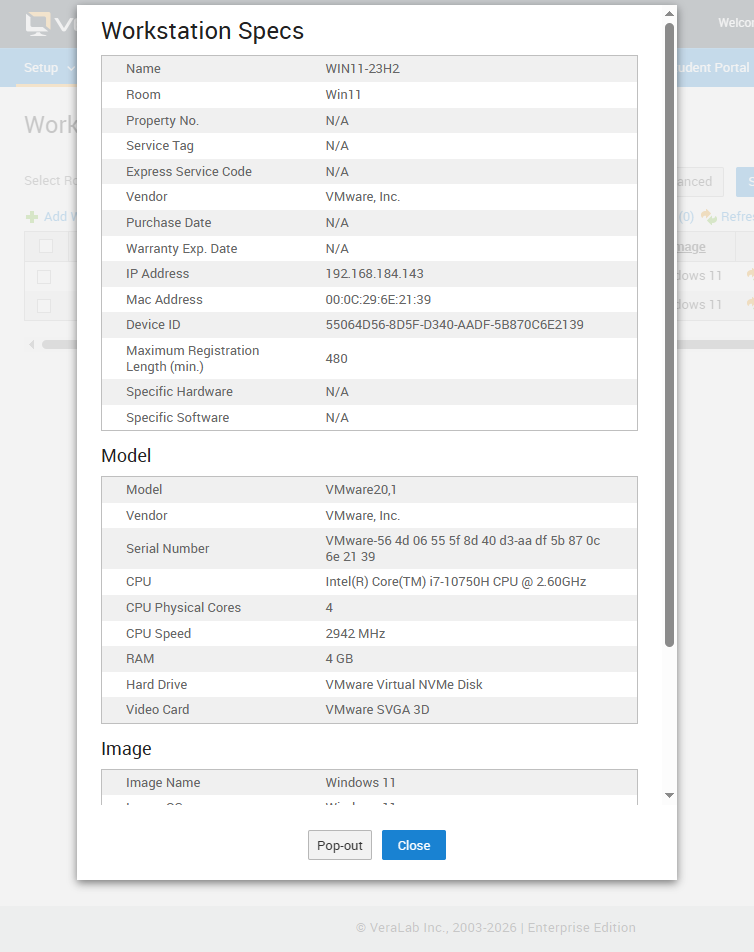
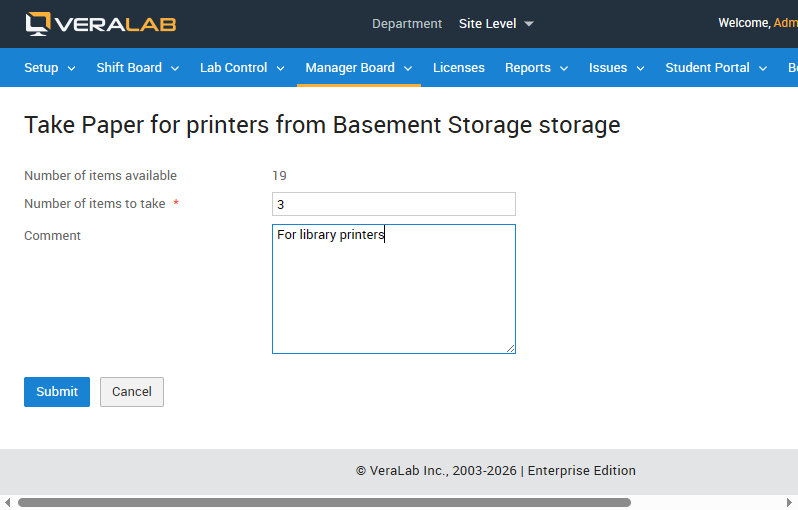
Since VeraLab 26.1, each workstation is recognized by a unique Device ID, so stations stay correctly matched even after they are renamed or their hardware changes, and the client reports its own computer model, keeping your inventory accurate without manual entry. Inventory transactions can carry comments, giving you a clear history of changes.
Maintenance Data for Planning
Because every issue is associated with a specific workstation, a cost and a repair history, managers can analyze maintenance costs, identify recurring hardware failures, evaluate total cost of ownership, and avoid buying from vendors with high maintenance costs and low equipment availability. Historical data also helps you stock the right quantity and selection of spare parts to keep downtime low. See reports and analytics.
Related features
Back to the VeraLab product overview, or browse the full VeraLab feature list with screenshots of every module.