Lab Staff Clock-In, Shift Scheduling and Payroll
Most computer labs are staffed by Lab Assistants, often students working part-time, who supervise rooms, sign users in and handle first-line support. The lab manager has to schedule them, make sure every room is covered during open hours, and turn their hours into payroll. Paper timesheets and spreadsheets make it hard to verify who actually worked when, and to spot the hours when nobody was at the counter.
VeraLab records attendance as staff clock in and out, lets managers build shift schedules and compare them with actual coverage, and calculates payroll from each Lab Assistant's pay rate and attendance records. The results are ready to export for your HR or accounting department.
Clock In and Out with the Shift Panel
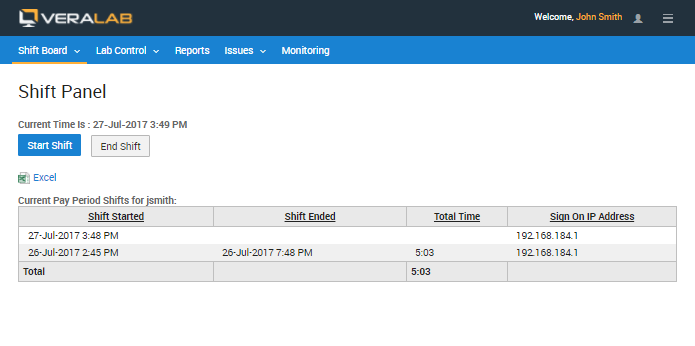
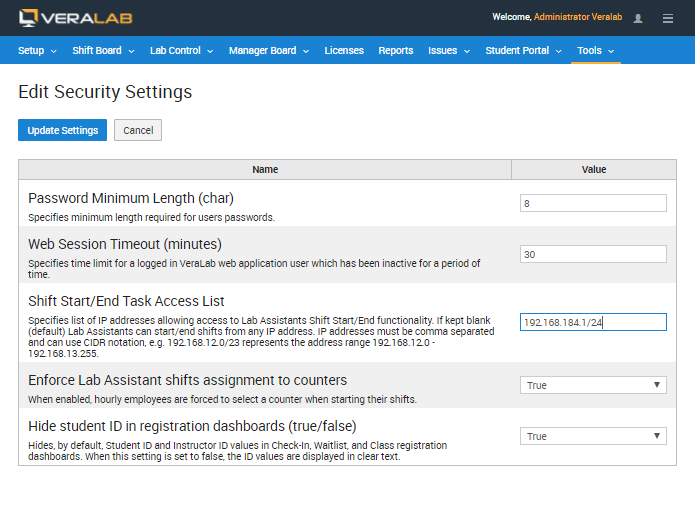
Lab Assistants clock in and out when they start and end their shifts by clicking Start Shift and End Shift in the Shift Panel. The panel shows the current time and the employee's shifts for the current pay period, with start and end times, total time and the IP address they signed on from, and the list can be exported to Excel. If the Enforce Lab Assistant shifts assignment to counters security setting is enabled, hourly employees must select a counter when they start a shift.
To stop a former employee from signing in without deleting their records, deactivate the account: go to Administrator → Users, edit the employee, clear the Active checkbox and click Update.
Shift Schedules
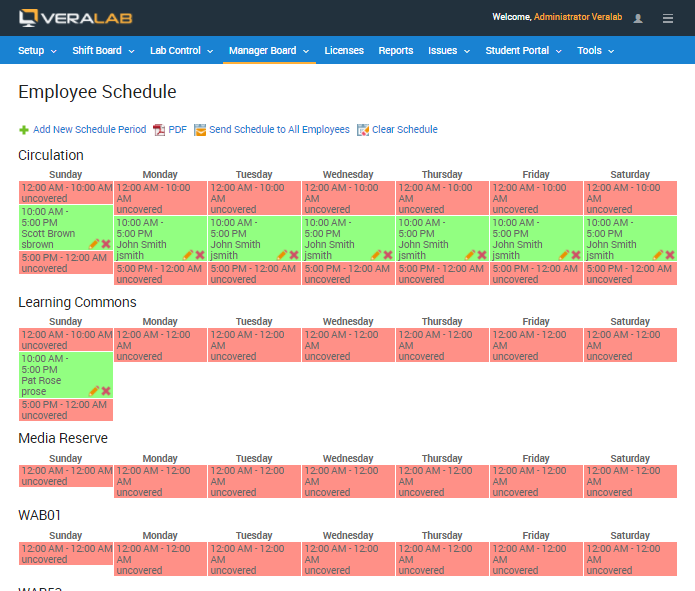
Lab Managers create shift schedules for each counter. The Employee Schedule shows every day of the week with covered periods in green, labeled with the employee's name, and uncovered periods in red, so gaps stand out immediately. Schedules can be saved as PDF and sent to all employees in one click.
Coverage Chart
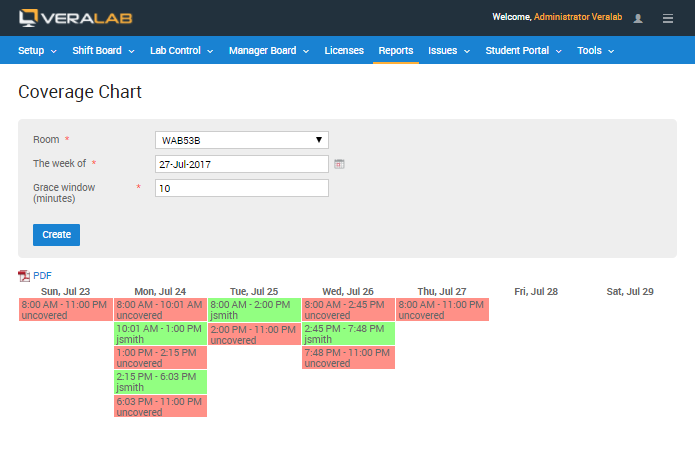
The Coverage Chart report shows how a room was actually covered by Lab Assistants, based on their real clock-in and clock-out times rather than the planned schedule. Choose a room, the week, and a grace window in minutes; the chart marks covered periods with the employee's name and uncovered periods in red. It can be exported to PDF.
Supervising Open Shifts
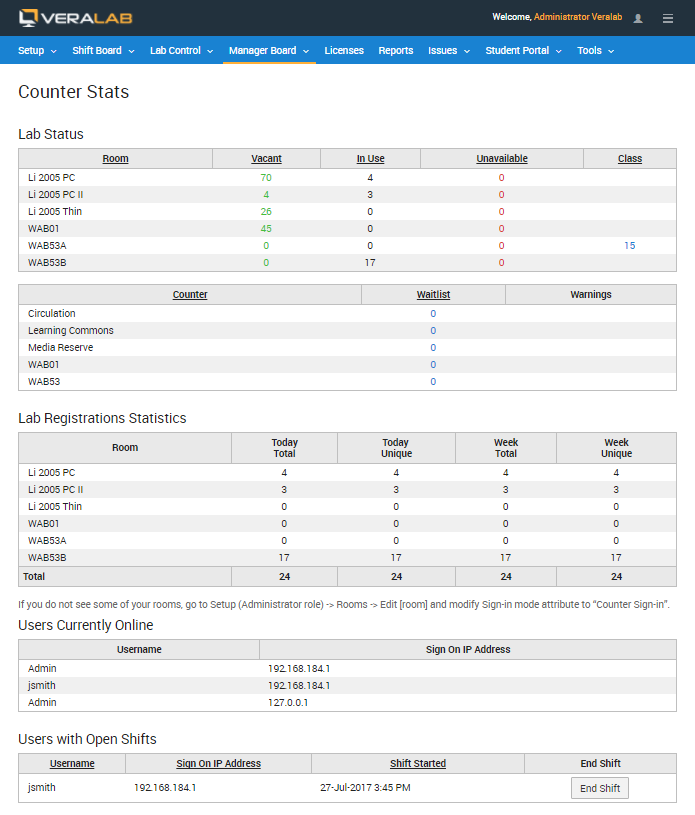
Managers can view the current status of the lab from anywhere through the Manager Dashboard. Alongside room occupancy and waitlists, it lists users currently online and Lab Assistants with open shifts, with an End Shift button for anyone who forgot to clock out.
Payroll Reports
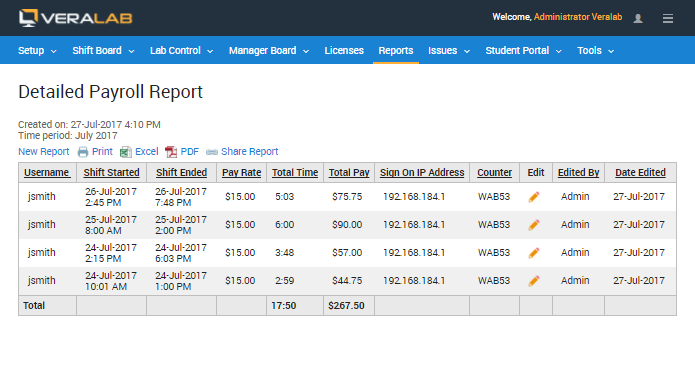
Payroll data is calculated from each Lab Assistant's pay rate and attendance records. The Detailed Payroll report lists each shift with start and end times, pay rate, total time, total pay, sign-on IP address and counter, and records who edited an entry and when. It can be run for an individual or for all employees at once. The Summary Payroll report shows aggregated time and pay for one or several employees over a range of pay periods. Since VeraLab 26.1, both reports have a checkbox to show all users or only currently active ones.
Export to Excel for HR
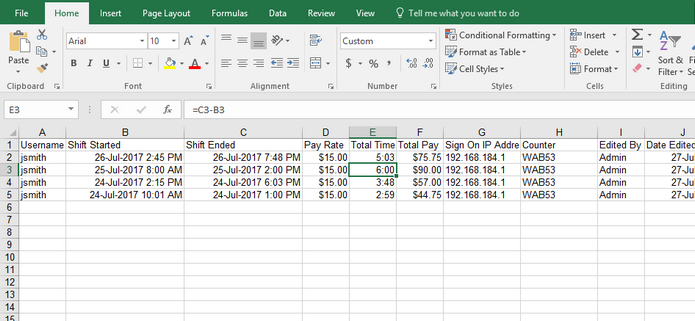
Payroll data can be exported in a form that is easy to submit to your HR or accounting department. Reports can be printed, saved as PDF, shared, or exported to Microsoft Excel; since VeraLab 26.1, reports generate in Excel (.xlsx) format, ready to filter, sort and share.
Restricting Clock-In by IP Address
To make sure Lab Assistants clock in from the lab and not from home, managers or administrators can restrict access to the Clock In/Out task by IP address or IP range. In Security Settings, the Shift Start/End Task Access List takes a comma-separated list of IP addresses and accepts CIDR notation; for example, 192.168.12.0/23 covers 192.168.12.0 to 192.168.13.255. If the list is left blank (the default), Lab Assistants can start and end shifts from any IP address.
Related features
Back to the VeraLab product overview, or browse the full VeraLab feature list with screenshots of every module.