Computer Lab Sign-In and Waitlist Software
When a lab is busy, the front desk decides how quickly students get to a computer. With paper logs or a spreadsheet it is hard to tell which workstations are free, who is sitting where, and whether the person at the counter has been banned for misuse. Students queue up in a full room while another room down the hall still has free machines.
VeraLab gives lab staff one place to sign users in and out, see occupancy across all rooms, reserve rooms for classes and manage waitlists. It supports both attended counter sign-in and self-service sign-in with your campus directory, checks every user against your Alert List, and records each session in an access log you can search later.
Counter Sign-In from the Lab Assistant Dashboard
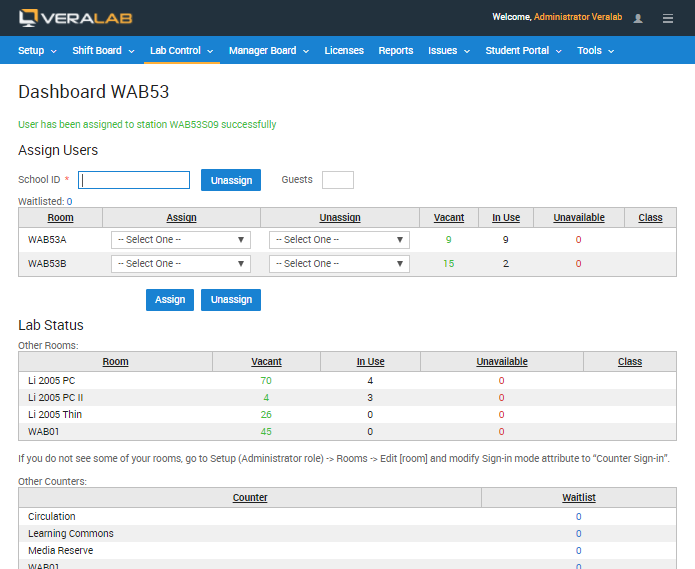
In the counter scenario, every incoming user signs in through a Lab Assistant, who assigns them to a workstation. From the Dashboard, the Lab Assistant enters the user's School ID, picks a workstation in one of the counter's rooms and clicks Assign; Unassign ends the session. The number of guests accompanying a user can be recorded as well. To speed up sign-in, the Dashboard can be integrated with card readers that read student ID cards.
Sign-in can also drive workstation locking: in Strict mode a workstation stays locked until a user is signed in to it and locks again at sign-out.
Self-Service Sign-In with LDAP, Active Directory and SSO
In the self-service scenario, registered users walk up to any available workstation and log in with their campus credentials. VeraLab Guard, the client on each workstation, notifies the VeraLab Server of every login; the server checks the user against the Alert List and checks that the workstation is available, and if either check fails, the user is logged out. Session start and end, and both successful and failed login attempts, are stored for reporting, and idle sessions can be signed out automatically.
VeraLab connects to your existing LDAP directory or Microsoft Active Directory, so there is no duplicate data entry. It can store directory attributes such as student, staff, faculty or alumni for reporting, and warn users on-screen when their status is about to expire. Single Sign-On (SAML) can be enabled for the VeraLab web application. See VeraLab LDAP integration, the counter vs. self-service sign-in white paper, and the LDAP and SSO (SAML) setup guides.
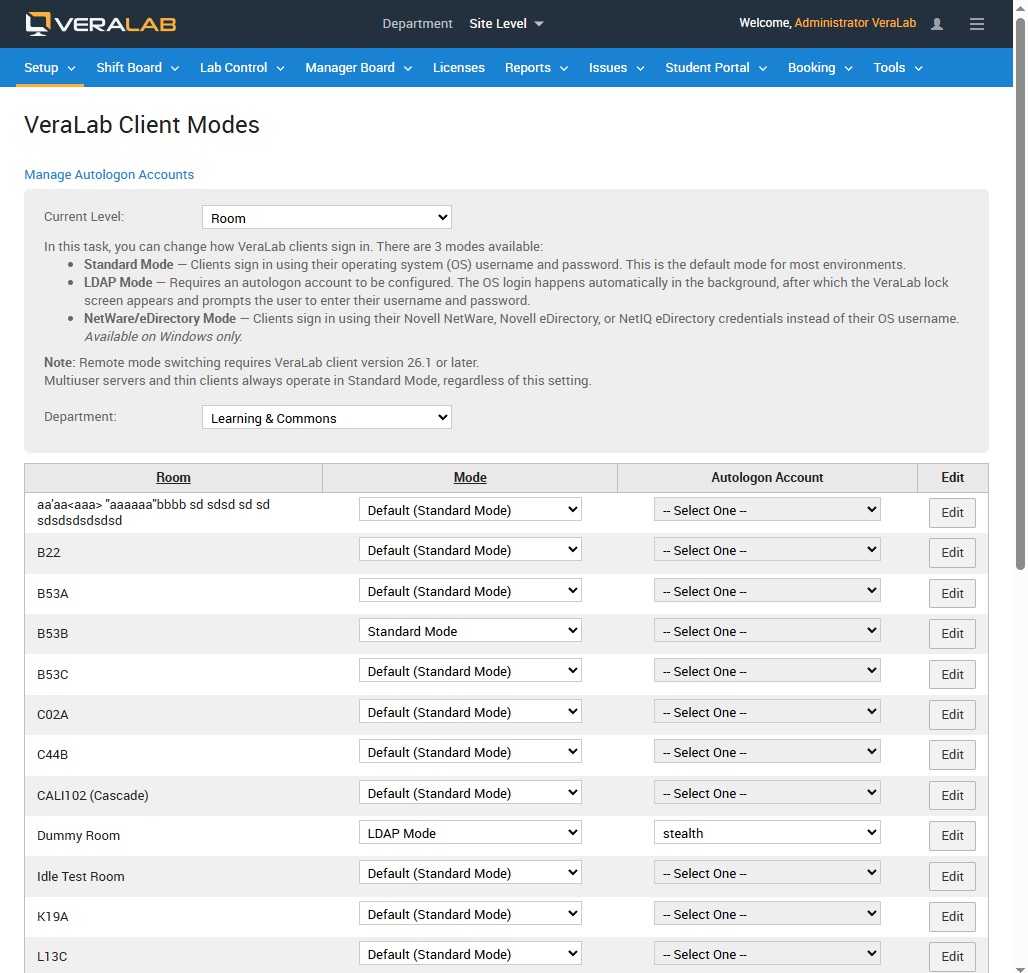
Since VeraLab 26.1, one unified client covers every sign-in method. How each workstation signs in is set per room or department from the server under Setup → Client Modes:
- Standard Mode: users sign in with their operating system username and password.
- LDAP Mode: an autologon account signs the workstation in automatically, then the VeraLab lock screen prompts the user for their own username and password.
- NetWare / eDirectory Mode: users sign in with Novell NetWare, Novell eDirectory or NetIQ eDirectory credentials (Windows only).
Changing a room's mode takes effect without reinstalling or restarting the client.
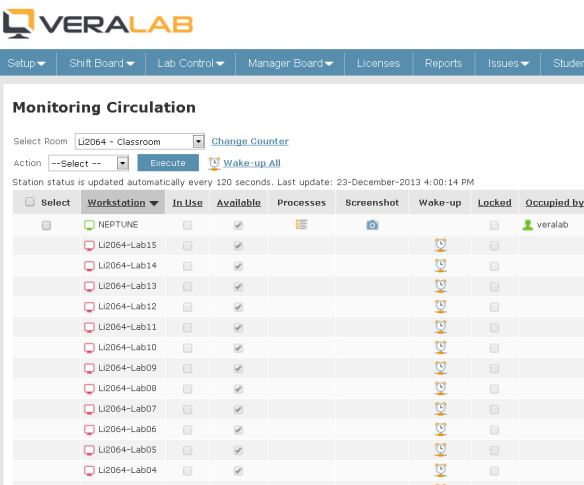
In self-service rooms, Lab Assistants watch the lab with the Monitoring task: signed-in users, Alert List notifications, occupancy and availability for each workstation.
Room Occupancy and Class Reservations
When a lab spans several rooms, the Dashboard shows the occupancy of every room (vacant, in use, unavailable and reserved for a class) and the waitlist at each counter, so staff can redirect incoming users from over-occupied rooms to under-occupied ones.
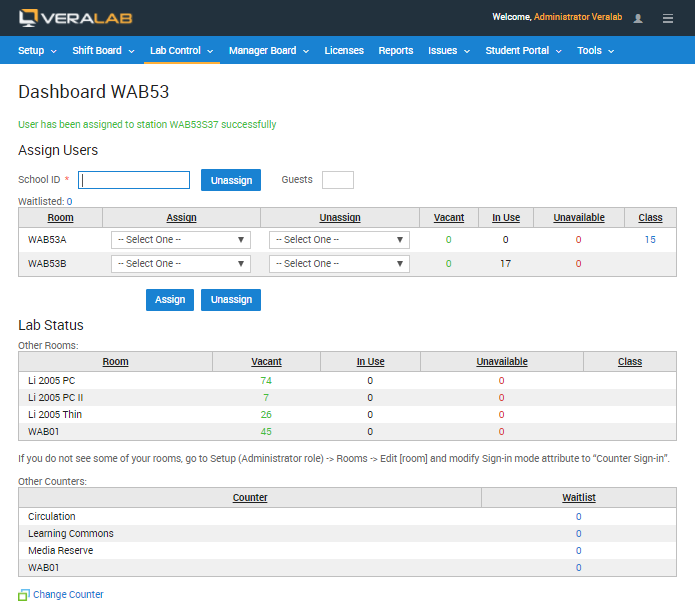
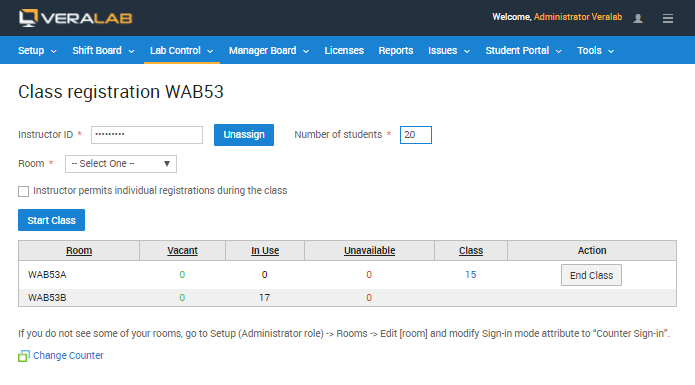
An entire room can be marked as reserved for a class. In Class Registration the Lab Assistant enters the instructor ID, the number of students and the room, then clicks Start Class. The instructor decides whether other users may take the remaining workstations by checking Instructor permits individual registrations during the class. End Class releases the room.
To let users reserve individual computers or rooms in advance, add the optional VeraLab Booking App.
Waitlists
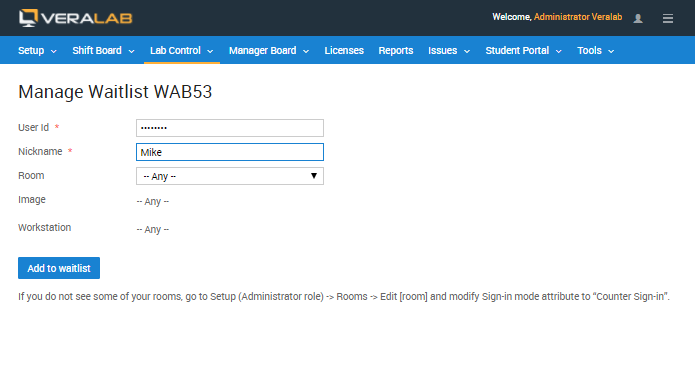
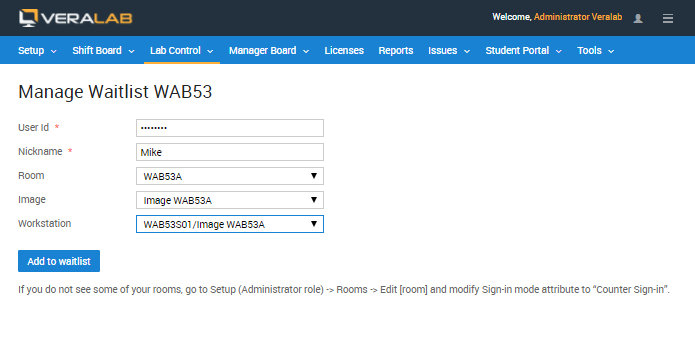
When no workstations are available, users can be added to a waitlist with their user ID and a nickname. Users can choose what they are waiting for: any machine in the room, a machine of a particular type (image), or a particular machine. Lab Assistants are notified as soon as a waitlisted user can be assigned to a workstation, and Waitlist reports show aggregated waitlist statistics per room by day of the week (see reporting).
Station Availability
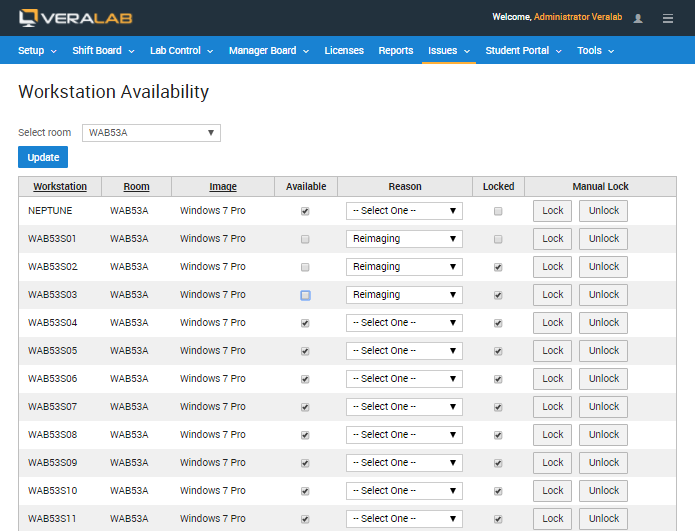
Out-of-order workstations can be marked unavailable, which prevents user sign-in in every sign-in mode. The Workstation Availability task shows each station's availability, a reason such as Reimaging, and its locked state, and unavailable counts appear on the Dashboard. Technicians can also take a station out of service from an issue; see issue tracking and maintenance.
Access Restrictions and Access Logs
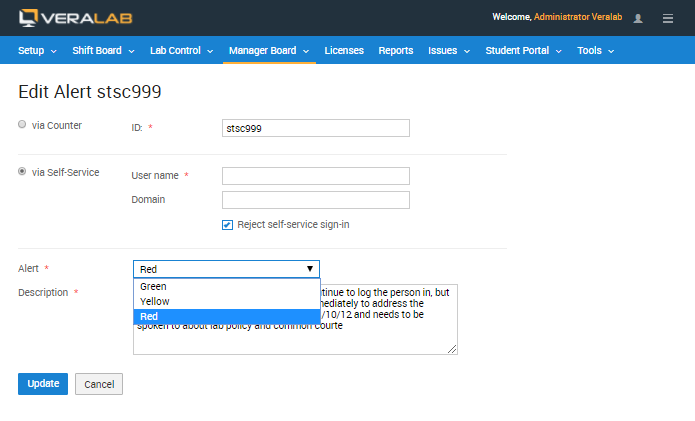
Known violators can be added to the Alert List, and Lab Assistants are warned when they try to sign one in. An entry can identify a counter user by ID or a self-service user by user name and domain, and can reject self-service sign-in altogether. See alert lists and threat levels.
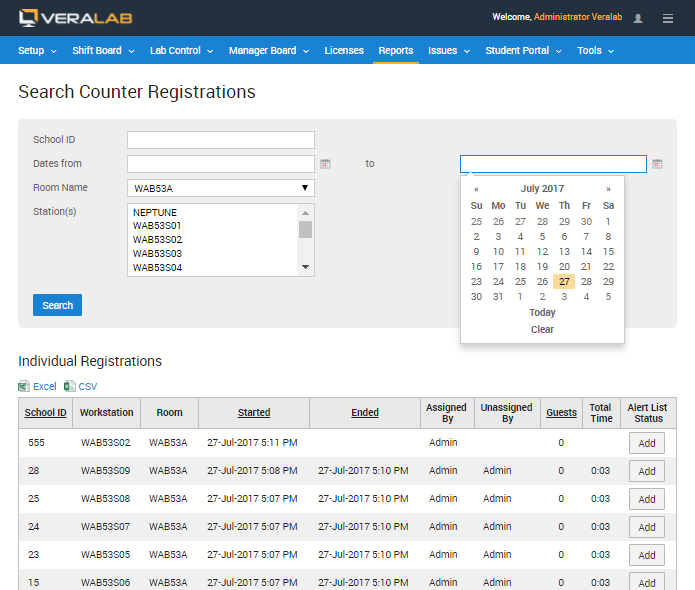
Every sign-in and sign-out is saved to the access log. Staff can search registrations by School ID, date range, room and station to find who occupied a particular workstation at a particular time, or which workstations a particular user has occupied. Results can be exported to Excel or CSV. A security setting hides Student ID and Instructor ID values in the Check-In, Waitlist and Class registration dashboards by default.
Related features
Back to the VeraLab product overview, or browse the full VeraLab feature list with screenshots of every module.