Workstation Locking, Security and Monitoring
A poorly supervised computer lab is both a target and an instrument of unwanted activity. Unattended workstations get used by people who never signed in, games and chat clients waste seat time, and when an incident is traced back to the lab, staff need to know who was at the machine and what was running. Walking from station to station does not scale across several rooms.
VeraLab Guard, the client installed on every workstation, enforces locking and carries out commands from the VeraLab Server. From the web console, authorized staff can lock and unlock workstations, flag known violators, see what is running on a machine, capture its screen, stop unwanted programs and send messages, without leaving the desk. To learn more about the security case, read Establishing a Secure Lab Environment.
Lock Screen and Locking Modes
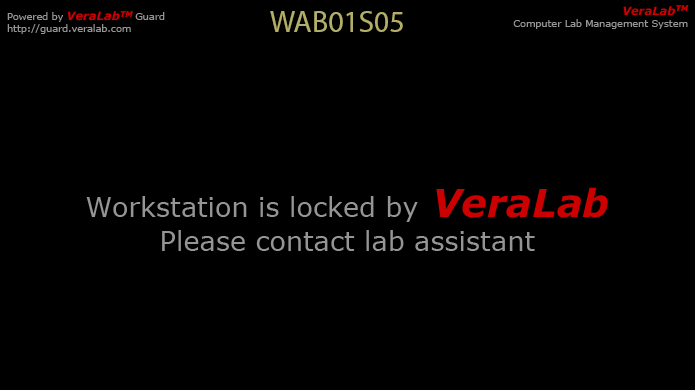
When a workstation is locked, VeraLab Guard turns off the mouse and keyboard and shows a lock screen with the workstation name, asking the user to contact a lab assistant. Workstations can be locked and unlocked on demand from the Lab Assistant Dashboard or the Workstation Availability task, and staff can lock a workstation to force a user off it. Users are warned several minutes before their session times out, so they can finish their work before the workstation is locked.
Locking can be integrated with user sign-in or performed on demand. Three locking modes are set at the system level and can be overridden for a room or a single workstation:
| Mode | Behavior |
|---|---|
| Strict | The workstation stays locked until a user is signed in, unlocks automatically, and locks again when the user is signed out. Lab assistants can still lock and unlock it on demand. |
| Liberal | An unattended workstation stays unlocked. It unlocks when a user signs in but is not locked when the user signs out. Lab assistants can lock and unlock it on demand. |
| None | Workstations are not locked automatically, but lab assistants can still lock and unlock them on demand from the VeraLab web application. |
Unlock Passwords and Network Outages
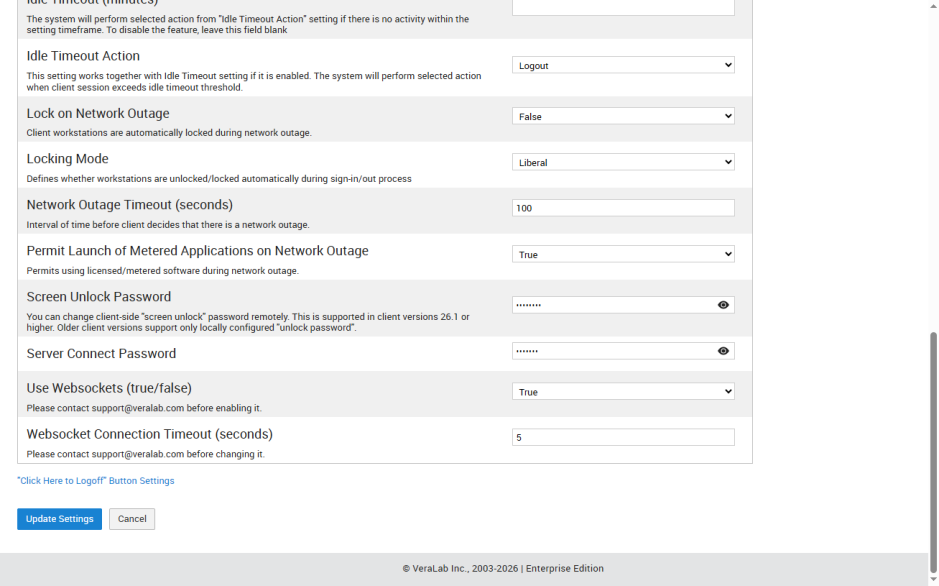
Once a client connects to the server, it downloads its locking settings and keeps them even during a network outage; the Lock on Network Outage setting decides whether screens lock when the connection is lost. If the network is down, staff press the spacebar on a locked workstation to bring up the password prompt and enter the unlock password.
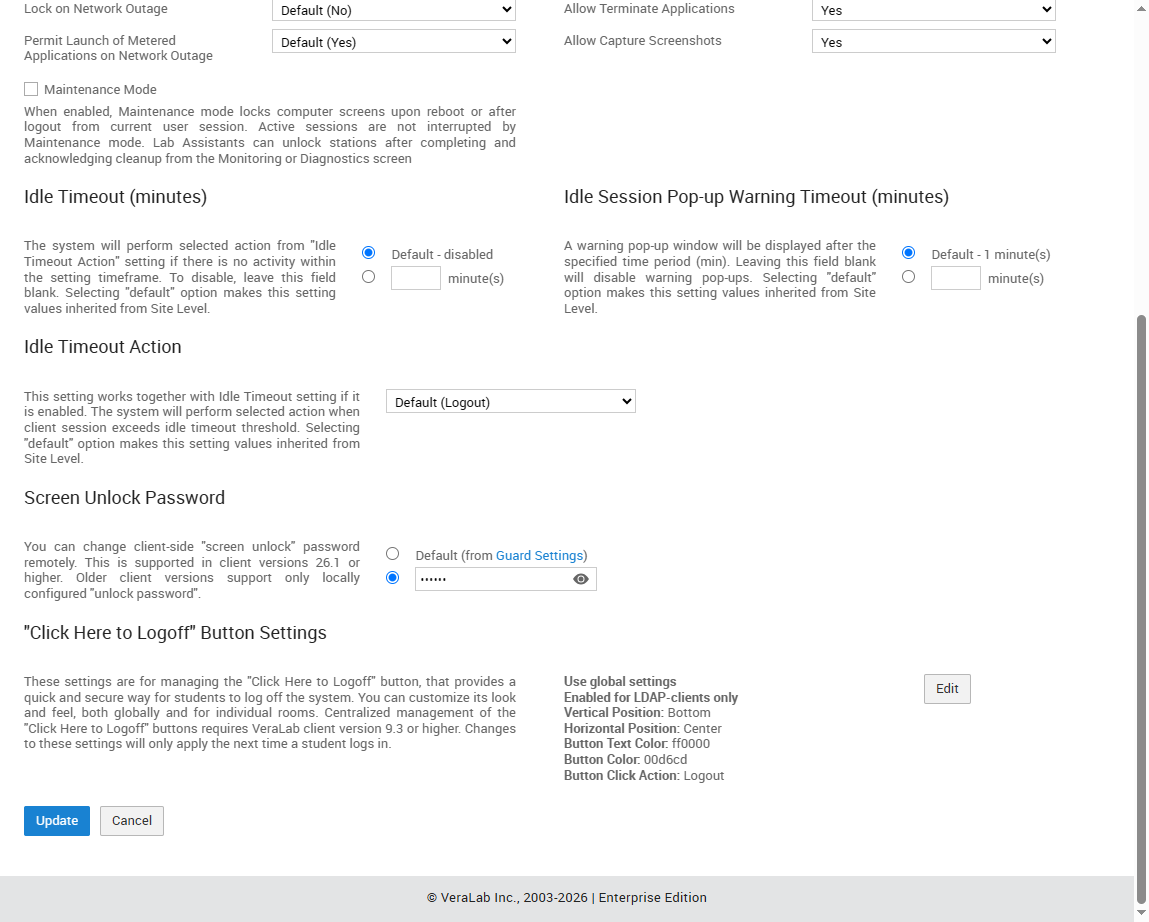
Since VeraLab 26.1, the screen unlock password is set centrally in Guard Settings, and each room can inherit that password or use its own, so passwords stay consistent across your labs.
Alert List and Threat Levels
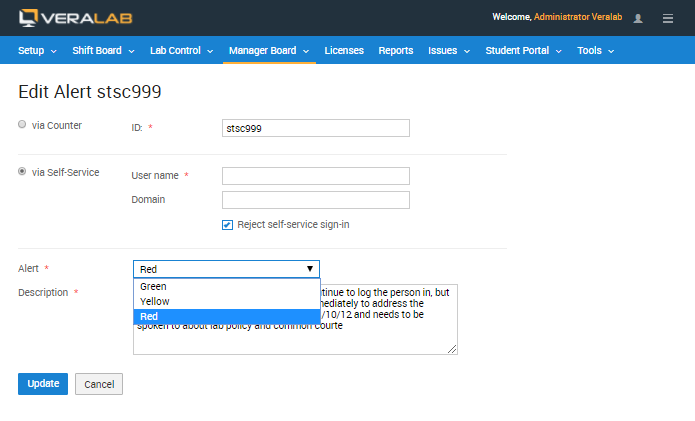
Once a violator is identified, for example by searching the access log, they can be added to the Alert List with a description of what happened. The next time a Lab Assistant tries to sign that user in, VeraLab displays a warning, and the Violations column counts each attempt. In self-service labs an entry can reject sign-in outright, so VeraLab Guard logs the user out.
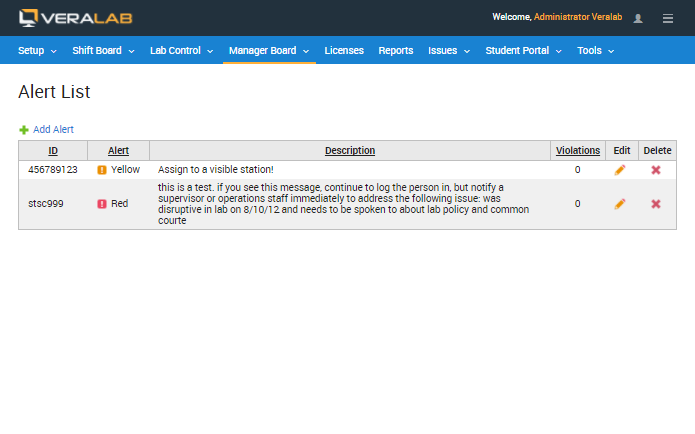
Each entry carries a threat level (Green, Yellow or Red), so your policy can prescribe different actions for different types of violators.
Remote Screenshots and Running Processes
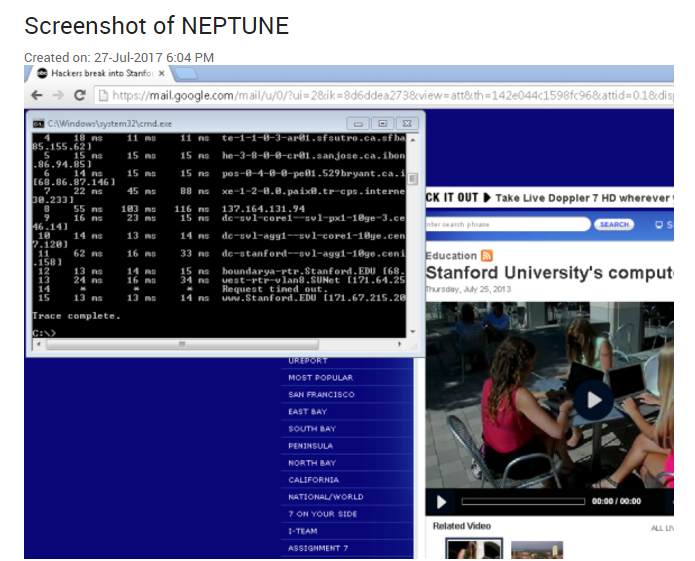
In case of suspicious activity, a trusted administrator can take a screenshot of a user's display as evidence of malicious activity or cheating during a test. The capture is time-stamped with the workstation name.
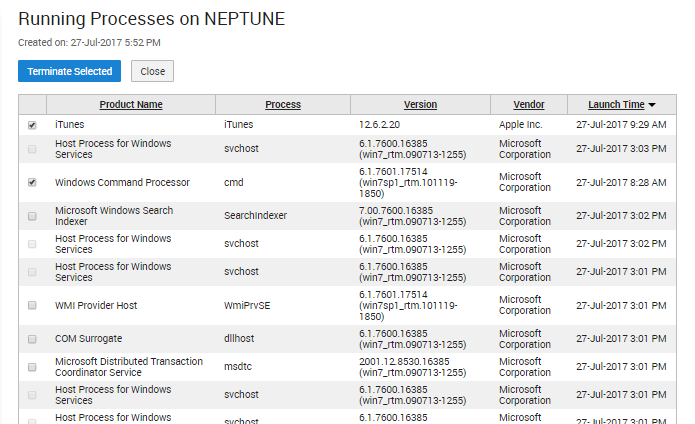
Administrators can also list the processes running on a workstation, with product name, process, version, vendor and launch time, select any of them and click Terminate Selected. The Monitoring module can also force a user to log out and shut a computer down.
Blocking Unwanted Programs
VeraLab can prevent users from running applications such as games, chat clients and file-sharing tools: once a restricted application is launched, VeraLab Guard shuts it down within a few seconds. The same technique stops software launched from removable media: in License Administrator >> Licenses, add a license entry with No. of licenses set to 0 and Path set to e:\*, and VeraLab Guard will stop any process started from drive E:. Concurrent license limits (software metering) are described in the full feature list.
Messages to Workstations
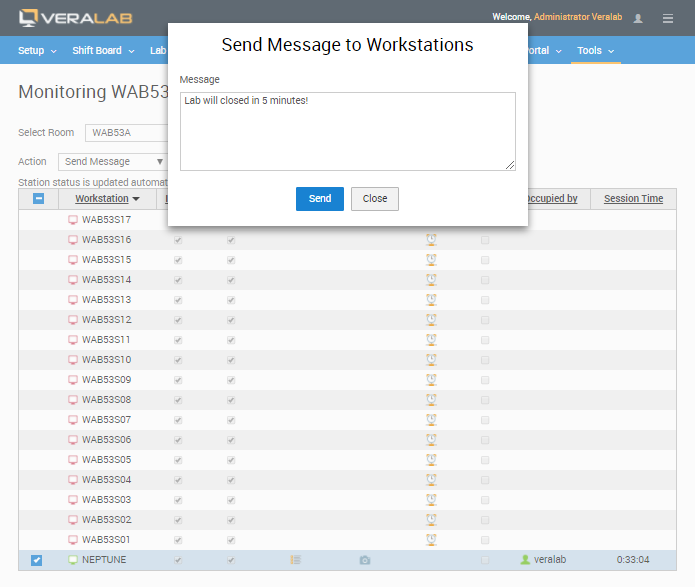
Administrators can send messages and announcements to one or many workstations at once, for example a warning that the lab is about to close. In the Monitoring task, select the workstations, choose Send Message, type the text and click Send.
Lock Screen Banners
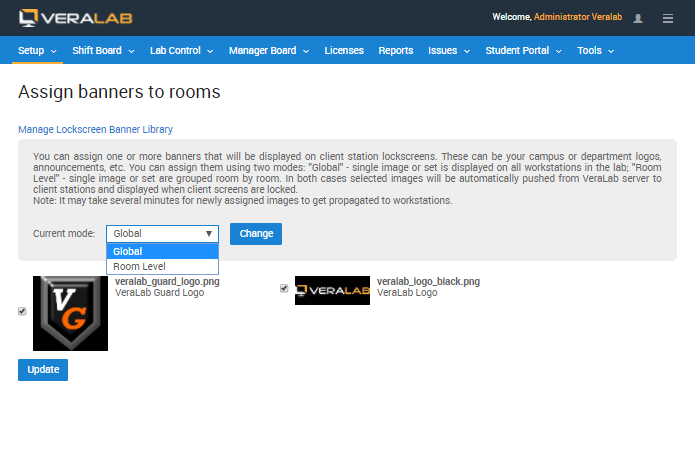
Custom banners, such as campus or department logos and announcements, can be broadcast to client lock screens and rotated in round-robin fashion. In Global mode a single image or set is shown on every workstation in the lab; in Room Level mode images are grouped room by room. Selected images are pushed from the VeraLab server automatically; newly assigned images may take several minutes to reach the workstations.
Remote Client Upgrade
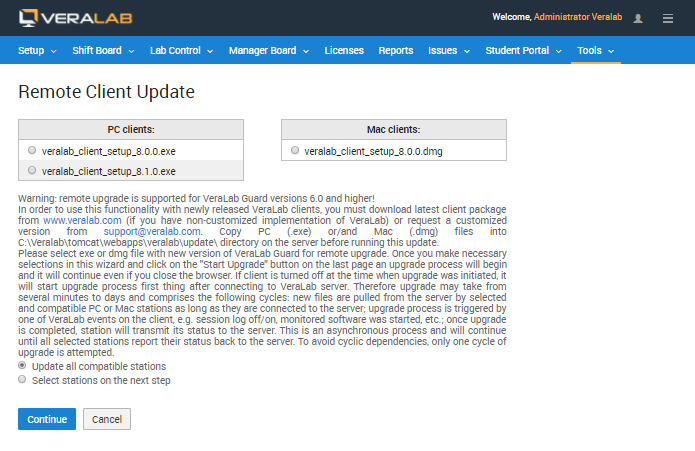
VeraLab Guard can be updated directly from the server; remote upgrade is supported for VeraLab Guard 6.0 and higher. Copy the new PC (.exe) or Mac (.dmg) client package into C:\Veralab\tomcat\webapps\veralab\update\ on the server, select it in the Remote Client Update wizard, and update all compatible stations or only selected ones. The upgrade runs asynchronously: a station that is turned off is upgraded when it next connects, and each station reports its status back to the server.
Related features
Back to the VeraLab product overview, or browse the full VeraLab feature list with screenshots of every module.